
Critical Requirement for Trade Tracking
The PnL Position tool is **required** for TradeJour to extract your trade data (entry, stop loss, take profit). This is the #1 reason for extraction failures. Note: If you're uploading screenshots for general analysis without tracking specific trades, the PnL tool is optional.
PnL Position Tool Guide
The TradingView Position/PnL tool is the foundation of TradeJournl's automatic extraction system. In this guide we'll talk about the settings required for us to accurately extract your trade data.
Why is it required?
TradeJour.nl scans your TradingView screenshot for trade data like entry time, entry price, stop loss, and take profit. The app will also extract any notes you may have written on your charts.
The app scans the whole screenshot to extract data so you don't have to spend time looking at a spreadsheet and can spend more time on the charts.
Because we are looking to extract data from the screenshot it goes without saying that if the data is not visible on the screenshot then we will not be able to extract it.
If your PnL tool is set up with the following settings then all the required data should be visible and we will be able to save you time when you are backtesting or trading in the live markets.
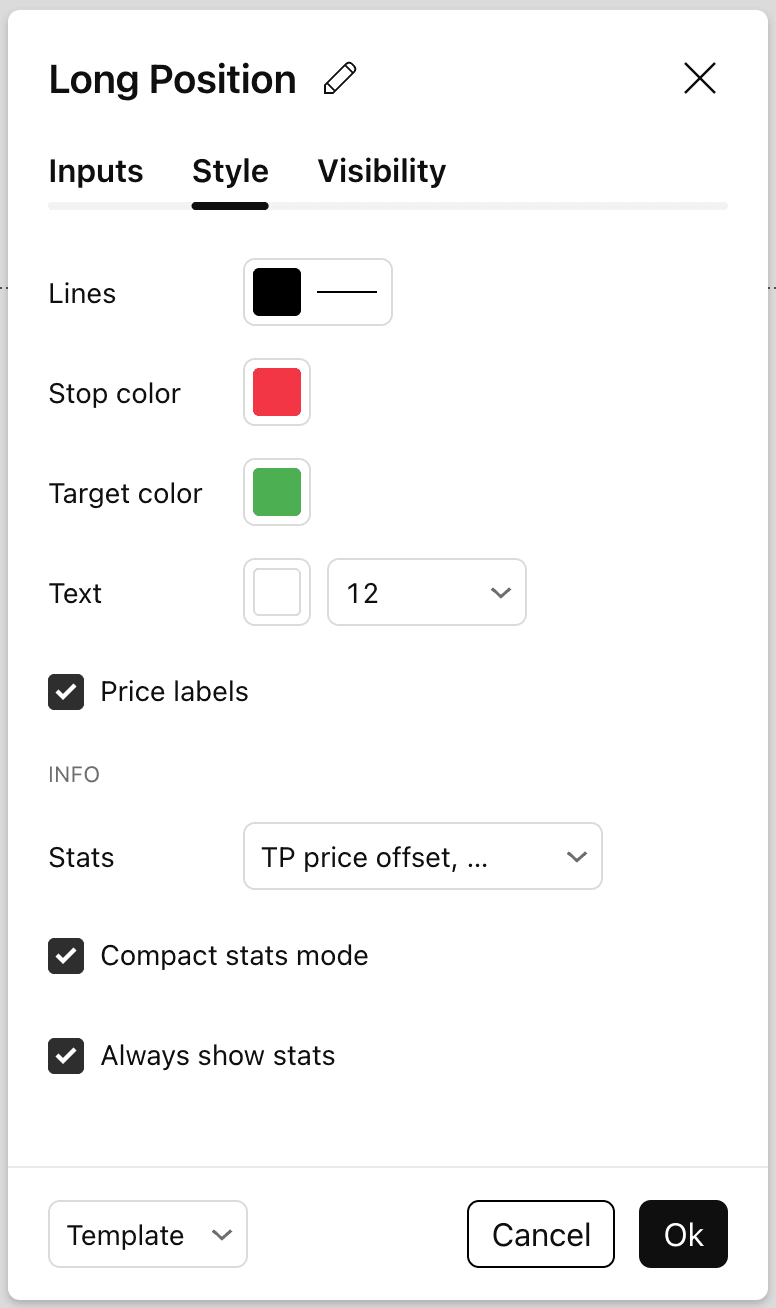
This is a snapshot of the settings you should use for the position tool. For more information please continue to read.
NOTE : The colors that you use for; Lines, Stop color, and Target colour are important for data extraction
Required PnL Tool Display Settings
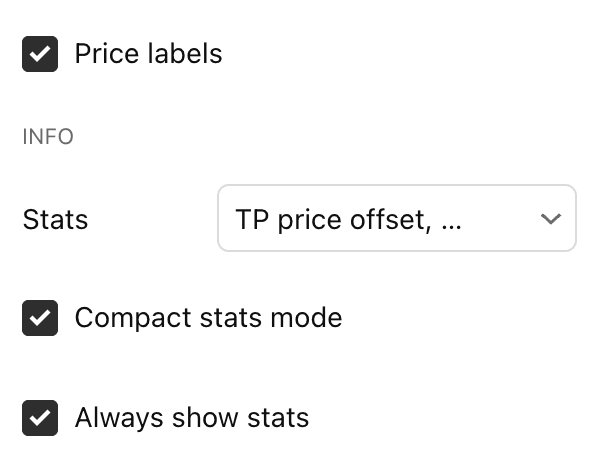
These settings are important to ensure that your data will be visible in your screenshots
Required Settings
- Price Labels: Ensures we will be able to see your Entry, Stop loss and Target highlighted on the Y-axis.
- Always Show Stats: This is important to ensure the data from the PnL tool are visible when you take a screenshot.
- Compact Stats: We have made the app work with compact stats so you can keep your charts as clean as possible while still allowing us to see all the data we need to verify your trade data.
Stats Options
In the Stats options, please select the following:
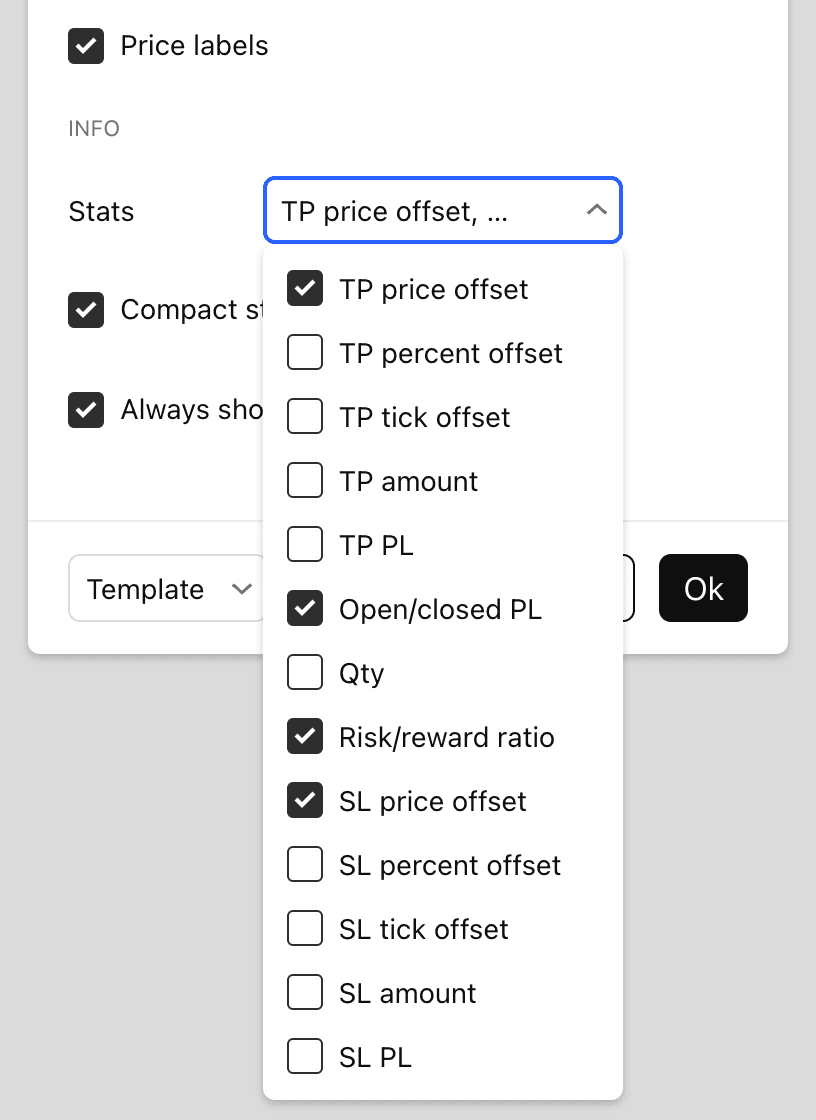
- TP Price offset
- Open/closed PL
- Risk/reward Ratio
- SL Price offset
These options give us all the data we need whilst ensuring your charts can remain relatively clean.
Perfect Example: Everything You Need
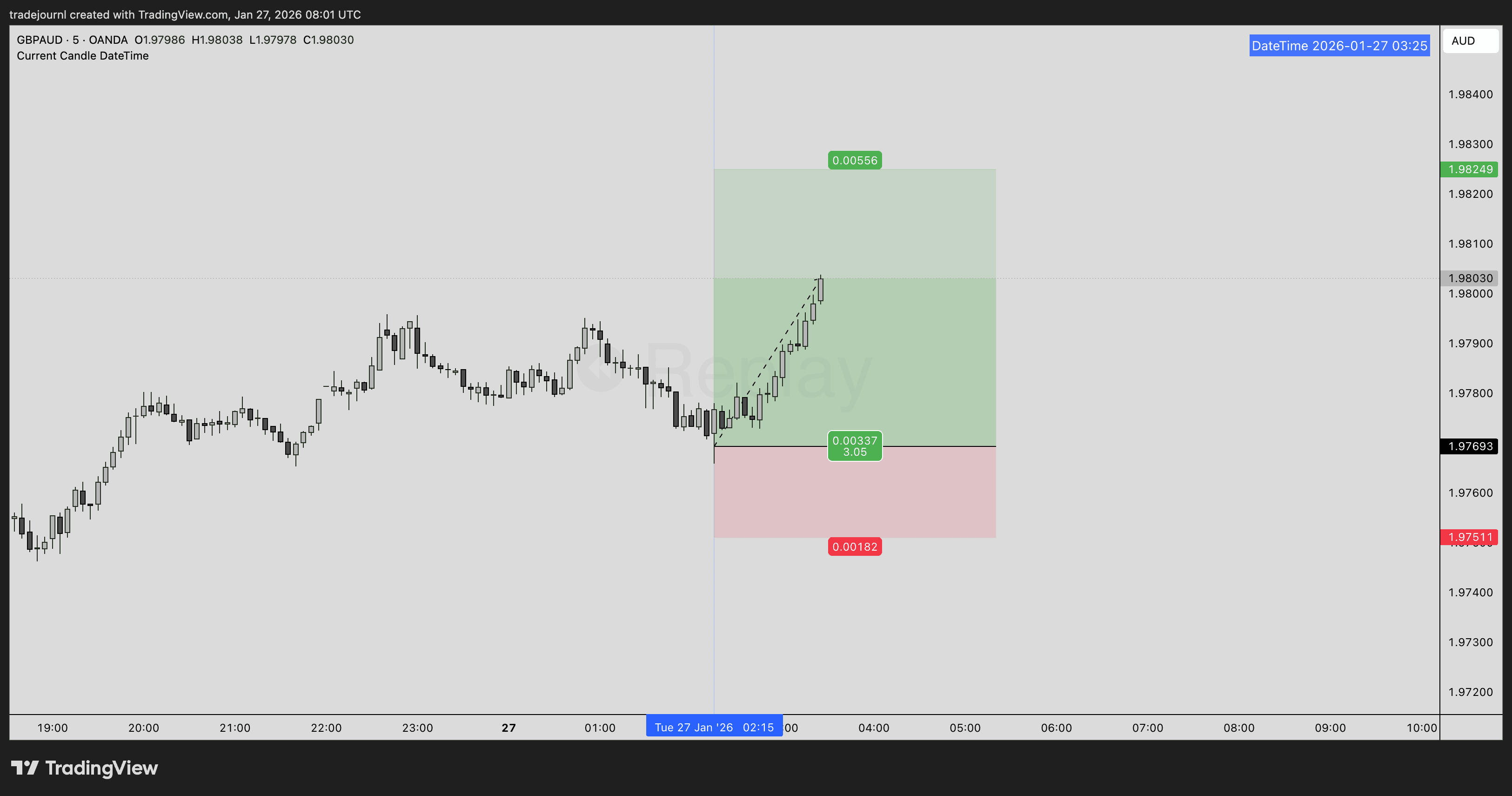
This shows everything: PnL tool with correct colors (red SL, green TP, black entry), DateTime indicator for automatic entry time extraction, and a vertical line marking the entry point.
Good vs Bad Examples
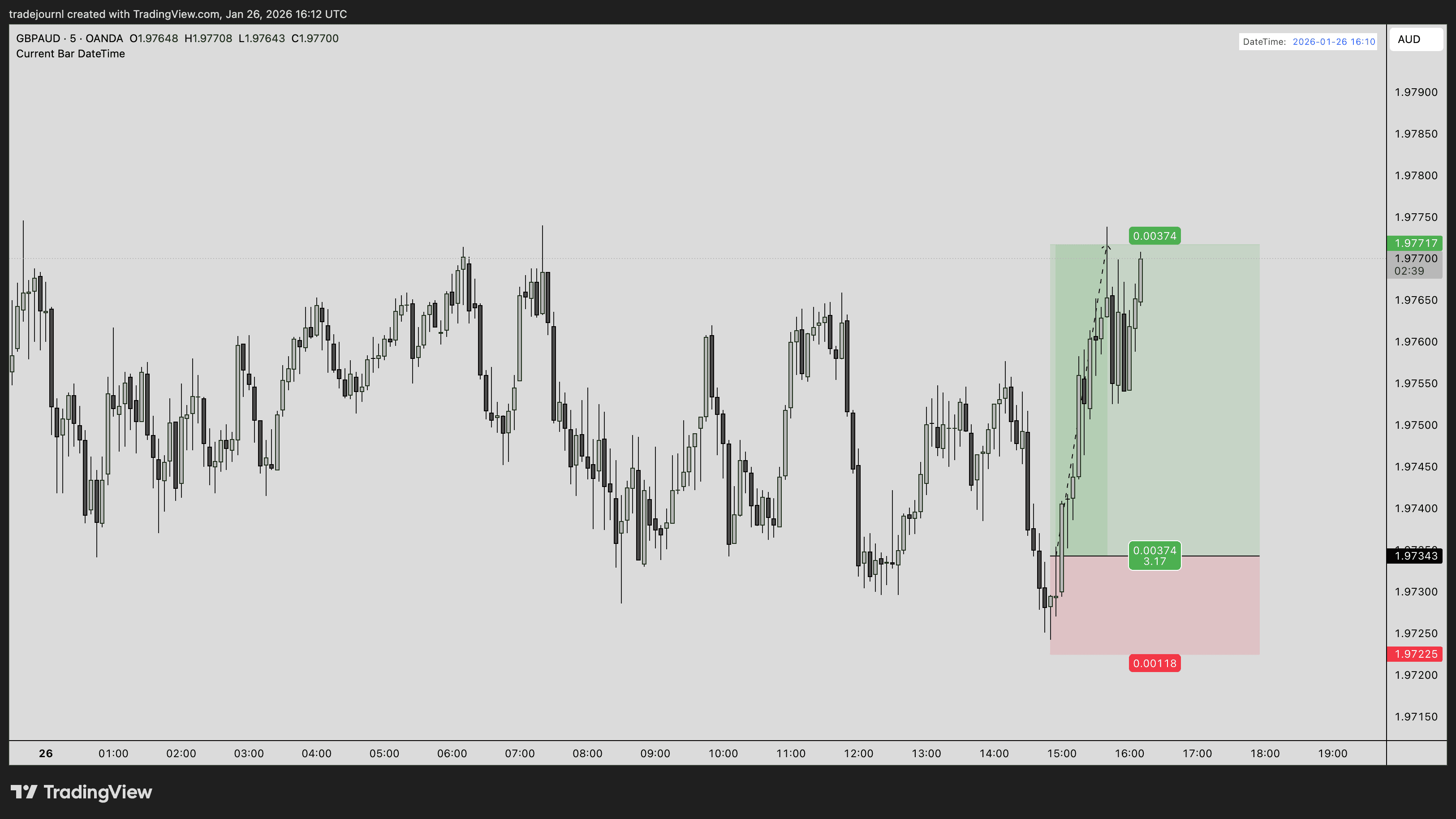
PnL tool clearly visible with all three colored labels (red SL, green TP, black entry)
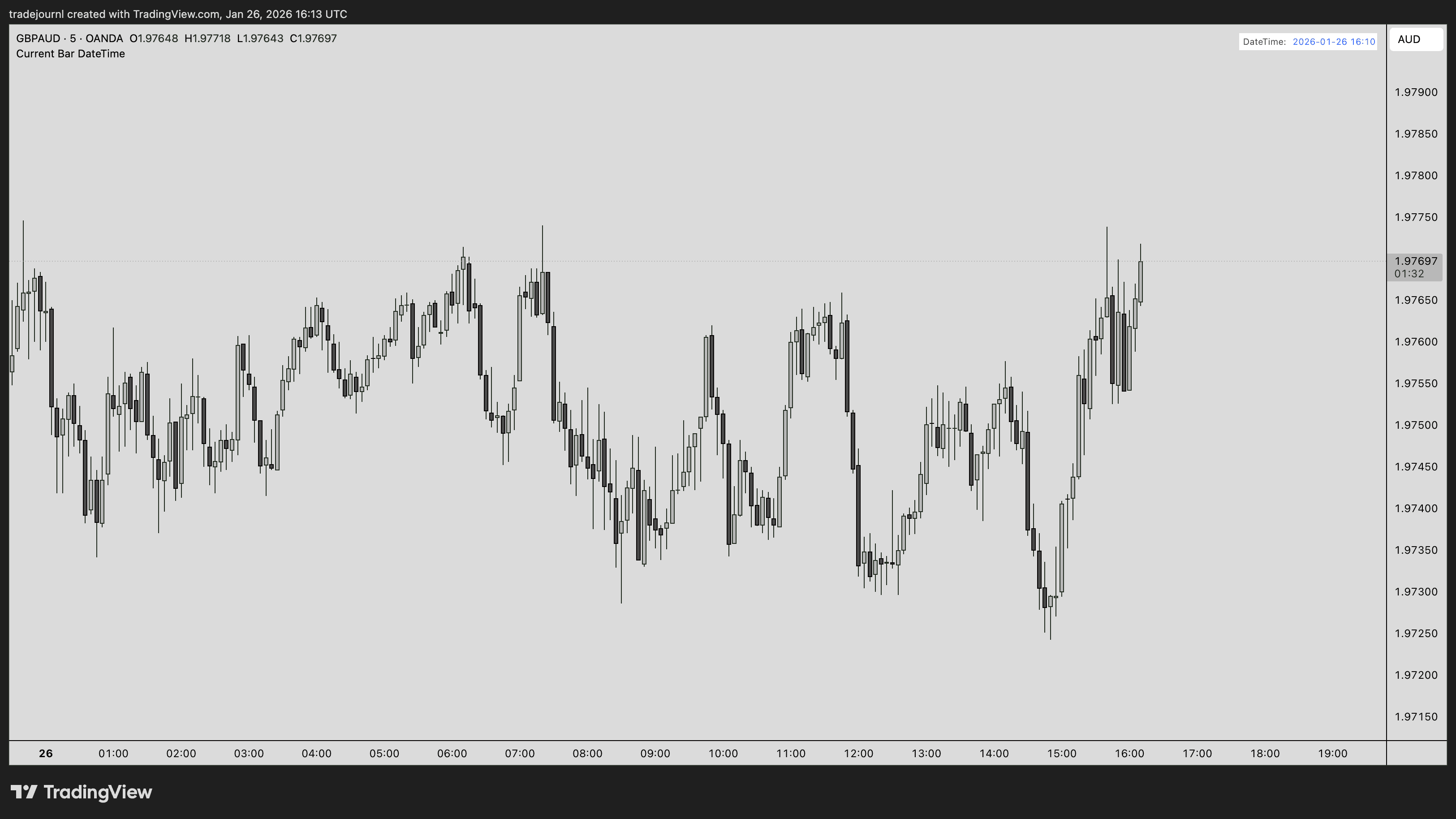
Missing PnL tool - extraction will fail completely
Required Colors (Keep These Reserved!)
Our system will be scanning for specific colors to identify crucial data. It is important that your PnL tool is set up with the following colours.
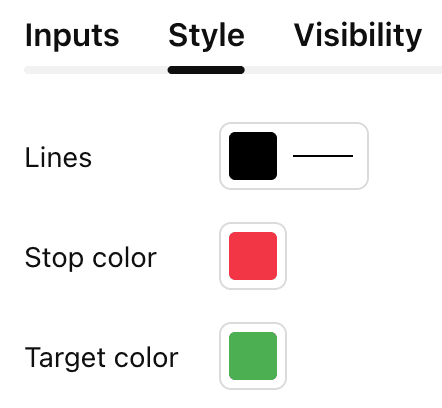
Required color configuration for the PnL tool
Note: We recommend that you keep these colours reserved for the PnL tool. If we detect other elements in your screenshot with these colours the data extraction may not work as expected.
How to Add the PnL Tool in TradingView
Step 1: Find the Position Tool
On the left hand side, open the "Projection" drawing folder.
- Long Position - For buy/long trades
- Short Position - For sell/short trades
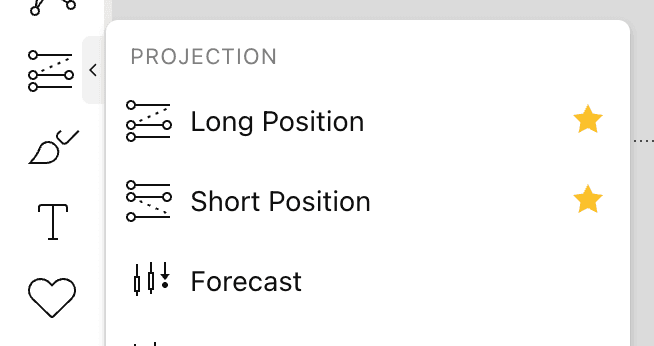
The Long/Short Position tool settings in TradingView - verify your colors match the requirements
Step 2: Draw Your Trade
Select the appropriate tool and click on your chart at your entry price. Then drag to set your:
- First drag: Sets your Stop Loss level
- Second drag: Sets your Take Profit level
The tool will display all three levels with colored labels and show the Risk/Reward ratio in the center.
Step 3: Verify the Colors
After placing the tool, verify that the colors match exactly. This is how we extract the data from your screenshot:
- ✅ Stop Loss label should be RED
- ✅ Take Profit label should be GREEN
- ✅ Entry label should be BLACK
Important: If the colors don't match, TradingView may have custom color settings. You can right-click the PnL tool and select "Settings" to manually set the colors to match the required hex codes above.
Pro Tip: Once you've configured these settings, TradingView will remember them for future PnL tools. You only need to set this up once!
Common Mistakes to Avoid
❌ Using Wrong Colors
If you've customized TradingView's default colors, the PnL tool may use different colors. Always verify the colors match our requirements.
❌ Multiple PnL Tools
When you are trying to track your trades we will need to extract the data for each trade individually. Please ensure each screenshot only has one PnL tool so there is no confusion in what data you are trying to extract.
❌ Using Reserved Colors Elsewhere
Avoid using RED (#f23645), GREEN (#089981 or #4caf50), or BLACK (#000000) for trendlines, support/resistance levels, or other annotations. These colors are reserved for the PnL tool.
❌ Covering Labels with Other Annotations
Make sure the price labels on the PnL tool are clearly visible. Don't draw text boxes, trendlines, or other objects over the labels.
Troubleshooting
Why didn't my screenshot work?
If your trade extraction failed, check these common issues:
- No PnL tool visible: The most common issue. Make sure the PnL tool is clearly visible in your screenshot.
- Wrong colors: Verify the colors match exactly (RED/GREEN/BLACK). Custom TradingView themes may change these.
- Labels cut off: Ensure all price labels are fully visible in the screenshot. Don't crop them out.
- Poor contrast: Use TradingView's dark theme for better label visibility.
- Too small: Make sure the labels are large enough to read. Zoom in if needed before taking the screenshot.
Multiple Timeframes
Good news! You can upload screenshots from multiple timeframes of the same trade. TradeJour will automatically group them together if they have the same pair and direction. The PnL tool only needs to be visible on one of the timeframes.
Next Steps
- Add the DateTime indicator for automatic entry time extraction
- Use text bubbles to add analysis notes
- Learn uploading best practices
Last updated: January 2026