
Uploading Best Practices
TradeJour.nl is a powerful tool that makes backtesting less tedious by extracting data from your screenshots. It is important that the data you want to extract is visible in the screenshot. If the data is not visable then TradeJour.nl will not be able to extract it.
High-quality screenshots lead to high-accuracy extraction. Follow these guidelines to get the best results from TradeJour.nl data extraction.
Screenshot Quality
✅ Use TradingView's Native Screenshot Tools
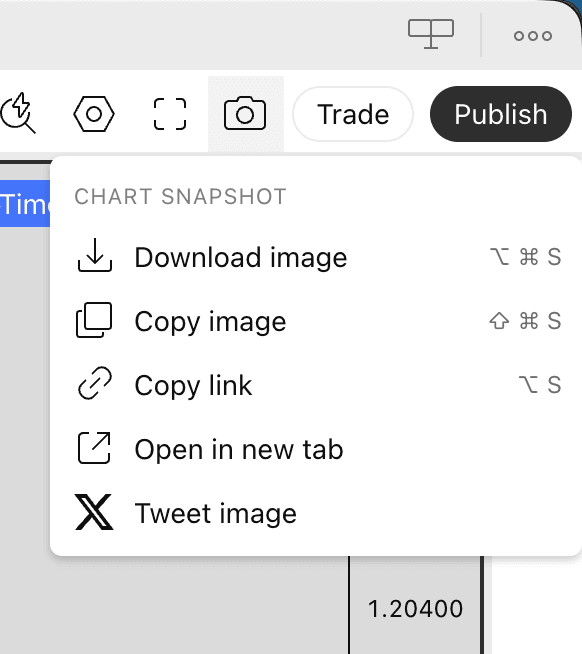
- In the top right hand corner of TradingView, click on the camera icon
- Select "Copy image"
❌ Avoid Phone Uploads
TradeJour.nl works best with screenshots from TradingView desktop.
Upload your screenshot to TradeJour.nl

Log Trade
When logging a trade, ensure you include the following in your screenshot:
- The Pnl tool with the correct settings
- A vertical line marking the entry time
- Any text annotations you may have made
Add Analysis
When adding an analysis, ensure you include the following in your screenshot:
- Any text annotations you may have made
- Note If you are logging an analysis you should include the current candle datetime tradingview indicator published by tradejournl
Paste your screenshot into TradeJour.nl
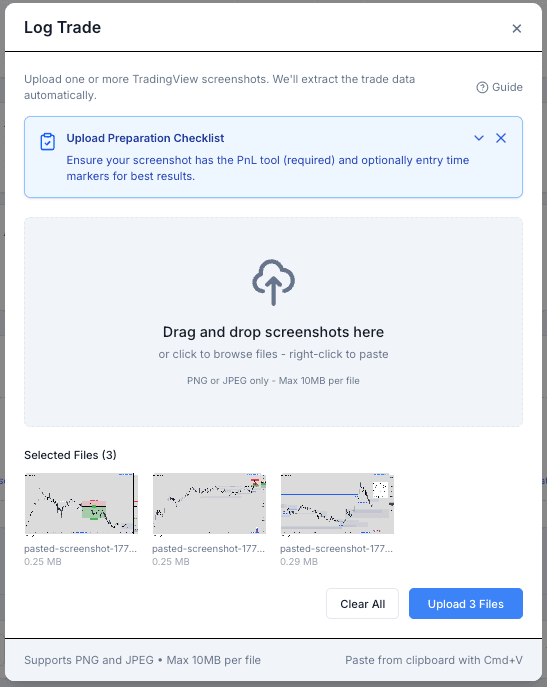
You can right click and paste on the upload zone to paste your screenshot into TradeJour.nl
You can also Ctrl+V (Windows) or Cmd+V (Mac) to paste your screenshot into TradeJour.nl
For both logging trade and adding analsis you can paste multiple screenshots with multi timeframe support
In the example above I have pasted Daily, 4H and 15M screenshots of the same trade
Chart Setup for Best Results
Theme & Contrast
- Recommended: TradingView dark theme
- Why: Better contrast between labels and background
- Result: Higher OCR accuracy for price labels
Zoom Level
- Make sure PnL tool labels are clearly readable
- Price labels should be at least 12-14px in the final screenshot
- Zoom in if labels appear too small
- All three labels (Entry, SL, TP) should be fully visible
Clean Chart
- Minimize overlapping indicators or drawings
- Ensure PnL tool labels aren't covered by other elements
- Turn off unnecessary indicators that clutter the view
- Keep the focus on your trade annotation
File Requirements
- Format: PNG or JPEG (PNG recommended for clarity)
- Size: Maximum 10MB per file
- Quantity: Up to 10 screenshots per upload
- Resolution: No minimum, but higher resolution = better extraction
Multiple Screenshots
Multiple Timeframes (Recommended)
Upload screenshots from different timeframes of the same trade:
- Daily + 4-Hour + 15-Minute
- Shows full context of your trade analysis
- TradeJour auto-groups them by pair and direction
- PnL tool only needs to be on ONE timeframe
Multiple Trades
You can upload multiple different trades in one batch:
- Different pairs (EUR/USD, GBP/USD, etc.)
- Different directions (some LONG, some SHORT)
- TradeJour automatically detects and separates them
- Each trade enters verification individually
Upload Methods
Drag & Drop
- Open the upload page or Log Trade modal
- Drag screenshot file(s) from your file manager
- Drop onto the upload zone
- Processing begins automatically
Click to Browse
- Click the upload zone
- Select one or more files in the file picker
- Click "Open"
- Processing begins automatically
Paste from Clipboard
- Take screenshot (it's copied to clipboard)
- Go to TradeJour upload page
- Press Cmd+V (Mac) or Ctrl+V (Windows)
- Image uploads directly from clipboard
Processing Time
Typical processing times:
- Single screenshot: 5-10 seconds
- Multiple screenshots: Processed in parallel (similar time)
- Large batches: May take 30-60 seconds for 10+ images
Tip: Don't refresh the page during processing. You'll see real-time progress indicators for each screenshot.
Common Issues & Solutions
"File too large" Error
- Cause: Screenshot exceeds 10MB limit
- Solution: Compress the image or use JPEG instead of PNG
- Tool: Use free online compressors or native OS compression
"Invalid file type" Error
- Cause: File is not PNG or JPEG
- Solution: Convert to PNG or JPEG before uploading
- Note: WebP, HEIC, and other formats aren't supported yet
Upload Stuck or Failing
- Check your internet connection
- Try uploading one screenshot at a time
- Clear browser cache and try again
- Try a different browser
Monthly Upload Limits
- Free tier: 10 uploads per month
- Starter tier: 150 uploads per month
- Pro tier: unlimited uploads per month
Limits reset each month. You can see your current usage on the journals page.
Next Steps
Last updated: January 2026